Your developer says the app is finished. That is not the same as the app being on the App Store and Google Play. Publishing means creating accounts in your name, passing store rules, preparing a listing and getting approval. First-time app owners often lose weeks here because nobody planned it. This guide walks through each step in the order it usually happens, with the fees and rules taken from Apple's and Google's own documentation.
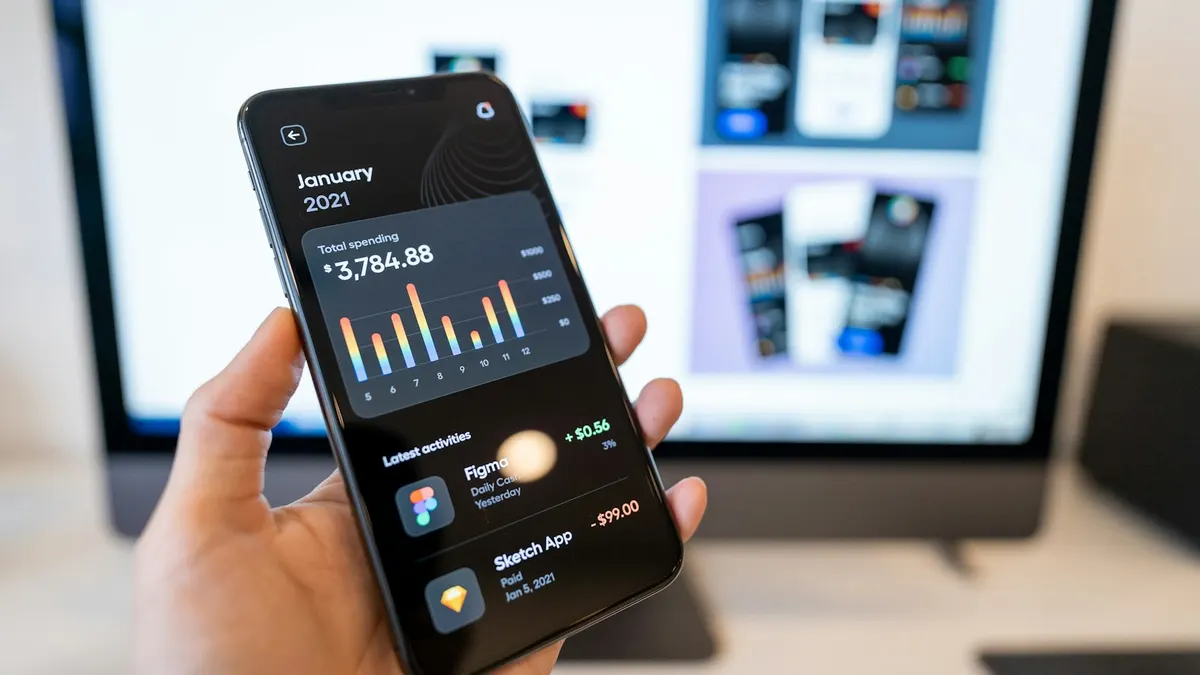 A finished build is only part of the work; accounts, listings and store review decide launch day. Photo: Tran Mau Tri Tam on Unsplash
The short answer
You need two store accounts, one for iPhone and one for Android, and each has its own rules:
- Apple: join the Apple Developer Program (listed at 99 US dollars a year), test with TestFlight, then submit through App Store Connect for App Review.
- Google: register a Play Console account (a one-time 25 US dollars fee), complete app setup, and if the account is a new personal one, run a closed test with at least 12 testers for 14 days before applying for production access.
Everything else, from the privacy policy to screenshots, you prepare once and reuse. Our guides to iOS app development and Android app development cover how each platform's app is built; this guide covers getting it into the stores.
Step 1: Decide who owns the accounts
This is the decision people skip, and it matters most. The developer account is the legal home of your app. Whoever creates it can control updates, pricing and whether the app stays online.
Apple lets you enrol as an individual or as an organisation. Its enrolment page says your legal name or your organisation's name is shown as the seller name on the App Store, and that organisations (excluding government entities) need a D-U-N-S Number so Apple can verify the legal entity. Google offers Personal and Organization account types, and its help page says you may be asked for a valid government ID and a credit card under your legal name as part of identity verification.
For a business app, register in the company's name using a company email address that more than one person can reach. Do not let an agency register the app under their own account unless the contract says it will be transferred. Our note on who owns the code in an app agreement explains why this should be in writing.
Step 2: Enrol and pass identity checks
Start enrolment as early as possible, ideally while the app is still being built. Apple says your Apple Account needs two-factor authentication, and an organisation needs a D-U-N-S Number, which is a nine-digit number assigned by Dun & Bradstreet. If your company does not have one, getting it can add time you did not budget.
On Google's side, expect identity verification for the account. If your account is a personal one created after 13 November 2023, the testing requirement in Step 4 also applies, so build that time into your plan.
Step 3: Prepare what the stores ask for
Both stores want the same raw ingredients, and gathering them early avoids last-minute rushes:
- App name, short description and full description that accurately describe what the app does.
- Screenshots for the device sizes each store asks for, plus an app icon.
- A privacy policy at a public web address. Apple's guidelines say all apps must include a link to their privacy policy in the App Store Connect metadata and within the app, and that it must say what data is collected, how, and for what.
- Support contact and a website.
- A test login if your app has accounts. Apple's guidelines ask for demo account information and for your back-end service to be turned on during review.
- Answers about data and content, such as what personal data the app collects and which age group it is for.
If your app uses a social login, Apple's guidelines say it must also offer an equivalent login option that meets certain privacy criteria, so raise that with your developer before you build, not after review.
Step 4: Test properly before you submit
Both stores have a testing path, and Google makes it mandatory for some accounts.
Apple: TestFlight. Apple describes TestFlight as the way to invite testers to try beta builds. According to Apple, you can add up to 100 internal testers from your team and invite up to 10,000 external testers. Apple says the first build for external testers goes through a TestFlight review.
Google: internal, closed and open testing. Google lists internal testing as optional, closed testing as a small group you control, and open testing as public. For personal accounts created after 13 November 2023, Google requires a closed test with at least 12 testers opted in continuously for 14 days before you can apply for production access. Plan for that two-week window, and recruit real people who will actually install the app, because the testers must stay opted in throughout.
Whatever the store, test on real phones, with real data conditions such as weak connections, and include the sign-up, login, payment and password-reset flows.
Step 5: Submit for review
You upload a build through App Store Connect for Apple and through Play Console for Google, then fill in the listing and submit.
Apple says App Review typically reviews at least 50 percent of submissions in less than 24 hours and 90 percent in less than 48 hours, though incomplete submissions may be delayed or rejected. Typical reasons come straight from the guidelines:
- Unfinished apps. Guideline 2.1 says submissions should be final versions with working URLs and no placeholder text, and tested on a device.
- Apps that are just a website. Guideline 4.2 says an app should have features, content and interface that go beyond a repackaged website.
- Inaccurate listings. Guideline 2.3 asks that metadata, screenshots and descriptions match what the app really does.
- Missing privacy information. See Guideline 5.1.1.
Google reviews apps against its own policies, so read its current Play policies before you submit and answer the setup questions honestly.
Step 6: Plan for rejection and updates
A first-time rejection is common and usually fixable. Read the reviewer's message, fix the specific issue, and resubmit. Keep a person on your side available during review to answer questions.
After launch, you will submit updates through the same process. Plan for them to take time too, and keep the accounts, certificates and app credentials somewhere your company controls. Our guide to app store optimization covers how to make the listing perform once the app is live.
Launch checklist
- Register store accounts in the company's name, using an email address several people can access.
- Confirm your D-U-N-S Number or start the request for the Apple organisation account.
- Start Google Play identity verification, and note whether your account type triggers the 12-tester rule.
- Publish a privacy policy at a public address and link it in the app and in both store listings.
- Write the description, prepare screenshots and an icon, and check every claim is accurate.
- Create a test login and turn the back end on for reviewers.
- Run TestFlight on iPhone and a closed test on Android, with real testers.
- Test sign-up, login, payments and password reset on real phones and weak networks.
- Submit, keep someone available to answer reviewers, and plan time for a possible resubmission.
- Store account credentials and certificates in company-controlled storage.
Common mistakes to avoid
Letting a freelancer own the accounts. If that person disappears, so can your ability to update the app.
Leaving enrolment until the end. Identity checks and testing windows can take longer than the build.
Forgetting the testing requirement on Android. If your Google account is a new personal one, recruit 12 testers early.
Submitting with placeholder content. It is one of the clearest reasons for review problems in Apple's guidelines.
No privacy policy or an inaccurate one. Both stores take this seriously.
No plan for updates. Launch is the start of a maintenance cycle, not the end of a project.
Key takeaways
- You need two accounts: Apple (listed at 99 US dollars a year) and Google (one-time 25 US dollars).
- Register in your company's name and keep control of the credentials.
- New personal Google accounts must run a closed test with at least 12 testers for 14 days.
- Apple expects a privacy policy, a demo login and a working back end during review.
- Start enrolment and testing early; the build is rarely the slowest step.
Need help getting an app to launch, or a second opinion on a vendor's plan? See our mobile app development service or talk to our team.
Sources
- Apple: Enrolling in the Apple Developer Program
- Apple: App Review Guidelines
- Google Play Console Help: Create and set up your developer account
- Google Play Console Help: App testing requirements for new personal developer accounts
- Apple: Apple Developer Program, TestFlight and App Review pages (as read for our iOS guide)
Last reviewed 30 October 2026. This article is general information, not a guarantee of approval. Store rules and fees change, so confirm details in Apple's and Google's current documentation.